

Dialpad CRM integration for Pipeline CRM
Connect Dialpad and your calls log themselves onto the matching contact in Pipeline CRM. Text messages go further than the other phone integrations: with SMS enabled you send and receive them from inside the record, in a messenger window that shows delivery status and replies.
✓ No credit card required ✓ 14-day free trial ✓ Cancel anytime
Trusted by over 18,000 users globally





At a Glance
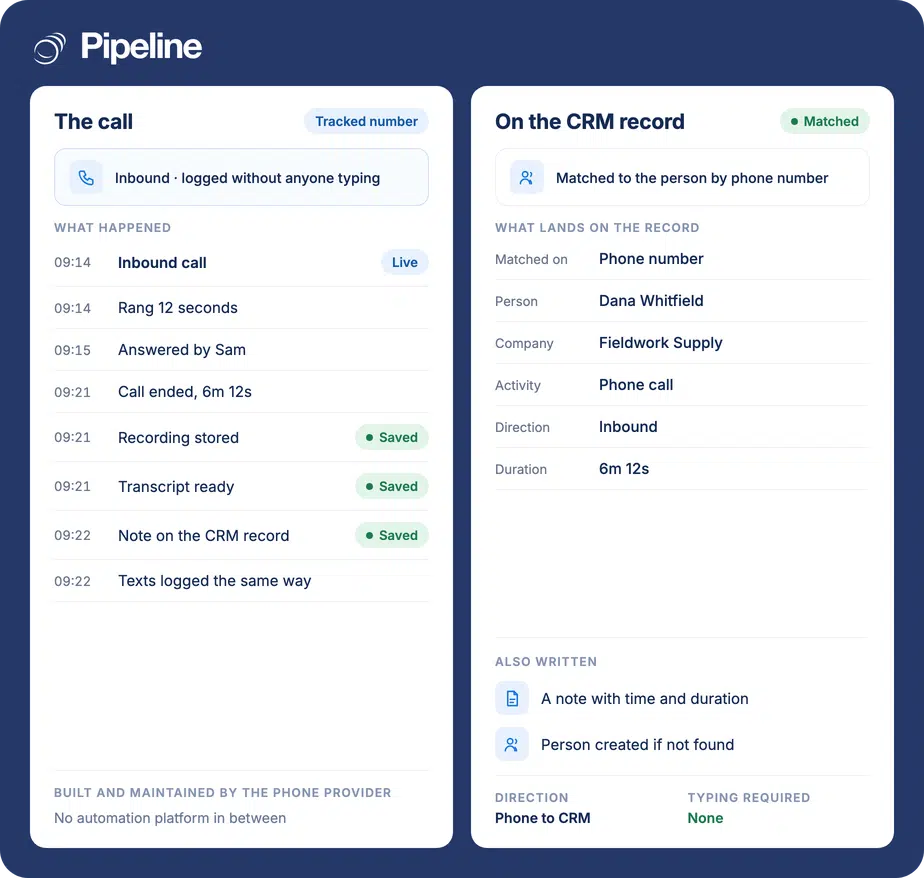
Pipeline CRM integrates with Dialpad through a built-in integration installed from the App Store and authorised with your Dialpad account. Calls and voicemails log automatically as activities on the matching contact, with six call types mapped to categories you choose. With SMS enabled you also send and receive text messages from inside a Pipeline CRM record.
Half the conversation happens where you cannot see it
Calls and texts are how deals actually move. Both tend to live outside the CRM, which makes the record a partial account of what happened.
Call notes never get written
Writing up a call is the easiest thing to skip, so the record shows a gap where the most useful conversation was.
Texting is invisible and personal
When reps text from their own app, the thread belongs to them. Nobody else can see it, cover it, or pick it up when they leave.
Switching apps costs the context
Moving between a phone app and the CRM to answer one question means the history is never quite in front of the person doing the talking.
Match the numbers, then authorise
You need admin permissions in both Pipeline CRM and Dialpad, and you should be logged into Dialpad before you start.
Every user sets their phone number
Each Pipeline CRM user goes to Profile, then My Profile, then Phone Number, and enters the same number they use in Dialpad. A mismatch logs calls to the wrong user or not at all, with no error to explain it.
Install and authorise
An admin goes to Settings, then Other, then App Store, installs Dialpad, opens the Dialpad Service tab and clicks Connect. Follow Dialpad’s prompts to authorise Pipeline CRM, then run Test Connection and save. There are no API keys to copy here.
Map call types, then enable SMS if you want it
On the Phone Settings tab, point each of the six call types at an activity category and enable the integration. For texting, open SMS Settings, check Enable SMS Support and choose categories for incoming and outgoing texts. Full setup guide in the help centre.
Teams who text as much as they call
The call logging matches the other phone integrations. The reason to pick Dialpad is what it does with messages.
Texting moves your deals
If confirmations, reschedules and quick questions happen by SMS, having that thread on the record rather than in someone’s phone changes what the CRM is worth.
You want one screen
Sending from the record means the person talking to the customer has the history in front of them instead of alt-tabbing to find it.
You are already on Dialpad
If it is your phone system, this is the shortest route to a complete record, and the setup needs no credentials to copy.
In the Dialpad integration
Everything below is part of the integration, installed from the App Store.
Automatic call logging
Calls are written onto the matching contact as activities without anyone writing a note.
Send SMS from a record
Open the Contact Info tile, click the SMS icon, and type in a messenger window that shows delivery status and timestamps.
Receive replies in the same place
Responses appear in that window rather than on a phone, and raise in-app notifications so they are not missed.
Texts logged as activities
Incoming and outgoing messages are categorised into activity categories you choose.
Voicemails logged
Voice messages received and left are both logged under categories you pick.
Missed calls logged
Unanswered calls in both directions create activities, so a missed inbound call is visible.
Six call types you map yourself
Completed and missed in each direction plus voice messages in each direction, each pointed at a category.
OAuth setup, no keys to copy
Connect and authorise rather than pasting an API key and secret, so there is no credential to mislay or rotate by hand.
Only one SMS integration can be on at a time
Pipeline CRM allows a single SMS integration to be enabled at once. If you run more than one phone tool, turning on Dialpad texting means the other one’s texting is off, and that is an either-or rather than something to work around. Decide which provider owns messaging before you configure it, because switching later means reconfiguring both. Two smaller things worth knowing. Texting needs a valid 10DLC campaign registered with Dialpad – US carrier regulation for business messaging, not ours, and approval is not immediate. And where a contact has both a work and a mobile number, check which one the message is going to before you rely on it, rather than assuming.
Dialpad integration questions
What people ask before connecting Dialpad.
Does Pipeline CRM integrate with Dialpad?
Yes, and it is built in. You install it from the Pipeline CRM App Store under Settings, then Other, then authorise Pipeline CRM inside Dialpad. There are no API keys to copy across.
Once enabled, calls and voicemails log automatically as activities on the matching contact, and you can optionally turn on two-way SMS.
Can I send text messages from Pipeline CRM?
Yes, and this is what separates Dialpad from the other phone integrations. With SMS enabled, open a record, click the SMS icon in the Contact Info tile, and write in a messenger window that shows delivery status and timestamps.
Replies come back into the same window and trigger in-app notifications, so the conversation lives on the record rather than in one person’s phone. The other phone integrations log texts as activities but do not give you a two-way messenger.
Can I use Dialpad SMS alongside another provider’s?
No. Only one SMS integration can be enabled at a time in Pipeline CRM, so enabling Dialpad texting turns the other one off.
If you run two phone tools, decide which owns messaging before configuring, since changing your mind later means reconfiguring both sides.
Why are calls not logging for one user?
Their phone number does not match. Each user must enter the same number they use in Dialpad under Profile, then My Profile, then Phone Number.
A mismatch attaches the call to the wrong user or drops it, with nothing to tell you why. If logging works for the team and fails for one person, check that first.
Do I need anything extra to text?
Yes. SMS requires a valid 10DLC campaign registered with Dialpad, which is a US carrier requirement for business messaging rather than something we impose.
Calls work without it, so if texting is the reason you want this, start the registration with Dialpad before planning a go-live date.
Which number does a text go to?
Where a contact has both a work and a mobile number, check which one the messenger is addressing before you rely on it. It is worth confirming on a real record rather than assuming, particularly if your data has both filled in inconsistently.