

Aircall CRM integration for Pipeline CRM
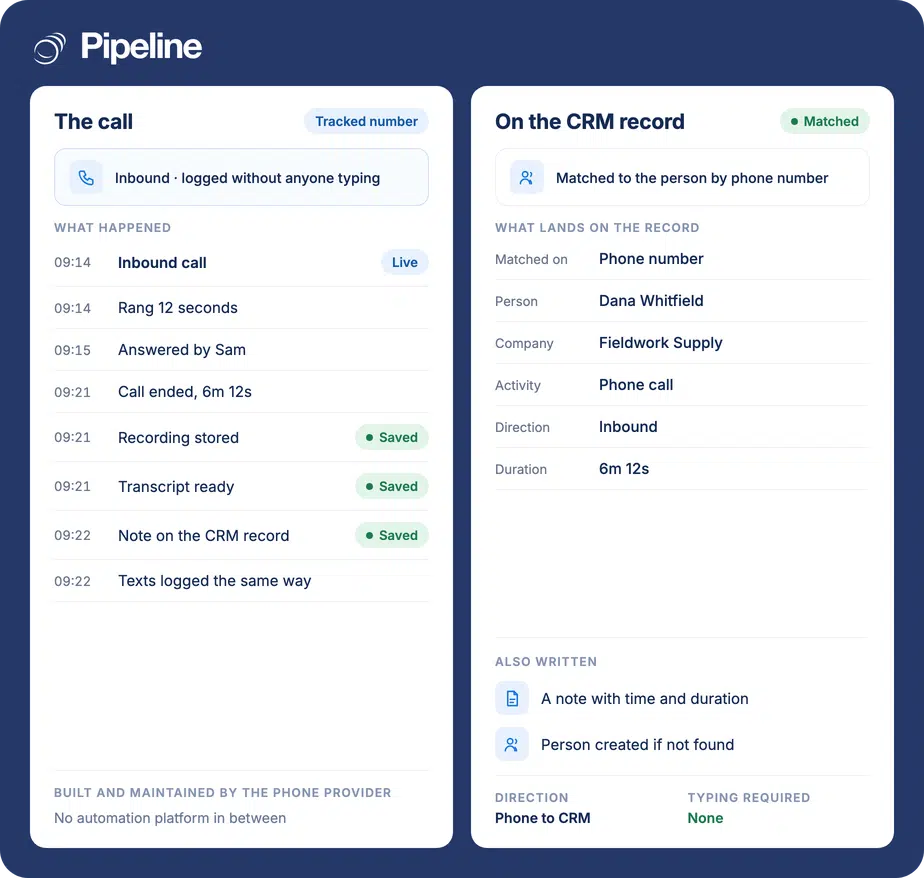
Connect Aircall and your calls log themselves as activities on the matching contact in Pipeline CRM, with no manual note. You choose which Aircall numbers feed the CRM during setup, so a support line can stay out of the sales pipeline if you want it to.
✓ No credit card required ✓ 14-day free trial ✓ Cancel anytime
Trusted by over 18,000 users globally





At a Glance
Pipeline CRM integrates with Aircall through a built-in integration installed from the App Store and authorised with your Aircall account. You select which Aircall numbers map into the CRM, and completed calls, missed calls and incoming voice messages are logged as activities on the matching People or Company records, mapped to categories you choose.
Calls that never reach the record
A cloud phone system makes calling easy. Keeping the CRM current afterwards is still a manual job unless something does it for you.
Notes depend on discipline
The busier the day, the less likely a call gets written up, so the record is thinnest exactly when activity is highest.
Support calls muddy the pipeline
If every line feeds the CRM indiscriminately, sales records fill with conversations that are not about selling anything.
Missed calls disappear
An unanswered inbound call is somebody trying to buy. Without logging there is nothing on the record to prompt a call back.
Authorise, then map your numbers
You need admin permissions in both Pipeline CRM and Aircall, and you should be logged into Aircall before you start.
Every user sets their phone number
Each Pipeline CRM user goes to Profile, then My Profile, then Phone Number, and enters the same number they use in Aircall. A mismatch means calls log to the wrong user or not at all, with no error shown.
Install and authorise
An admin opens Settings, then Other, then App Store, installs Aircall and clicks Connect on the Aircall API Service tab, then Authorize to let Pipeline CRM read the Aircall data.
Add the numbers, then map call types
Click Add Numbers, choose the number you want feeding the CRM, click Confirm and then Add Numbers again. Run Test Connection, then map each of the six call types to an activity category and enable it. Nothing logs until a number is mapped. Full setup guide in the help centre.
Teams on Aircall with more than one line
Call logging is similar across our phone integrations, so what tips the choice here is usually the number mapping.
Aircall is your phone system
If the team already calls through Aircall, this is the shortest route to a complete record without changing anyone’s habits.
You run separate sales and support lines
Because you choose which numbers map in, the sales line can feed the CRM while support conversations stay out of it.
You follow up on missed calls
Unanswered inbound calls are logged, so the callback is prompted by the record rather than by somebody remembering.
In the Aircall integration
Everything below is part of the integration, installed from the App Store.
Completed calls logged
Incoming and outgoing calls that connect are written as activities on the matching record.
Missed calls logged
Unanswered calls in both directions are recorded, so a dropped inbound call stays visible.
Incoming voice messages logged
Voice messages left for you appear as activities rather than only in Aircall.
You choose which numbers feed the CRM
Map only the lines that matter, so a support or billing number does not fill the sales record.
Attaches to People or Companies
Activities land on whichever record matches, so the call sits with the rest of the relationship.
Six call types you map yourself
Completed and missed in each direction plus voice messages in each direction, each pointed at an activity category.
OAuth setup, no keys to copy
Authorise in Aircall rather than pasting an API key, so there is no credential to store or rotate by hand.
Test Connection before going live
Confirm the link works from inside the integration before enabling it for the team.
No mapped number means no logging
Authorising Aircall is not the last step. Until you use Add Numbers to select at least one Aircall number, the integration is connected and logs nothing. It looks finished, Test Connection can pass, and no activity appears – the same silent shape as a mismatched user phone number. The upside of the same design is real control. Businesses running a sales line, a support line and a main switchboard through Aircall can send just the sales line into Pipeline CRM, so the record stays about selling rather than filling with support traffic. Decide which lines belong in the CRM before you start, and revisit it whenever you add a number in Aircall, because a new number does not map itself.
Aircall integration questions
What people ask before connecting Aircall.
Does Pipeline CRM integrate with Aircall?
Yes, and it is built in. You install it from the Pipeline CRM App Store under Settings, then Other, and authorise Pipeline CRM inside Aircall. There are no API keys to copy across.
Once a number is mapped and the integration is enabled, calls log automatically as activities on the matching People or Company records.
I authorised it and nothing is logging. Why?
Most likely no number is mapped. Authorising Aircall is not sufficient on its own: you have to click Add Numbers, select the number you want feeding the CRM, confirm it, and then click Add Numbers again.
Until that is done the integration looks connected and Test Connection can pass, but no activity appears. If a number is mapped and it still fails, check the user’s phone number matches their Aircall number exactly.
Can I keep some phone lines out of the CRM?
Yes, and that is the point of the number mapping. Only the Aircall numbers you select feed Pipeline CRM.
So a business running a sales line, a support line and a switchboard can send just sales into the CRM. Remember to revisit it when you add a number in Aircall, because new numbers are not mapped automatically.
What gets logged?
Completed calls in both directions, missed calls in both directions, and incoming voice messages, each as an activity on the matching person or company.
You choose which activity category each of those maps to during setup, so you can keep one Phone Call category or split them out for reporting.
Why are calls logging against the wrong person?
The user phone numbers do not line up. Each Pipeline CRM user must have the same number in their profile as they use in Aircall, otherwise the call attributes to whoever does match, or to nobody.
It is worth auditing those profile numbers once across the team rather than troubleshooting them one complaint at a time.
Do we need admin access?
Yes, on both sides. Installing and authorising needs admin permissions in Pipeline CRM and in Aircall, and you should be logged into Aircall before you begin.
Individual users do not need admin rights, but each of them does need to set their own phone number in their profile for their calls to log correctly.