

Excel CRM integration for Pipeline CRM
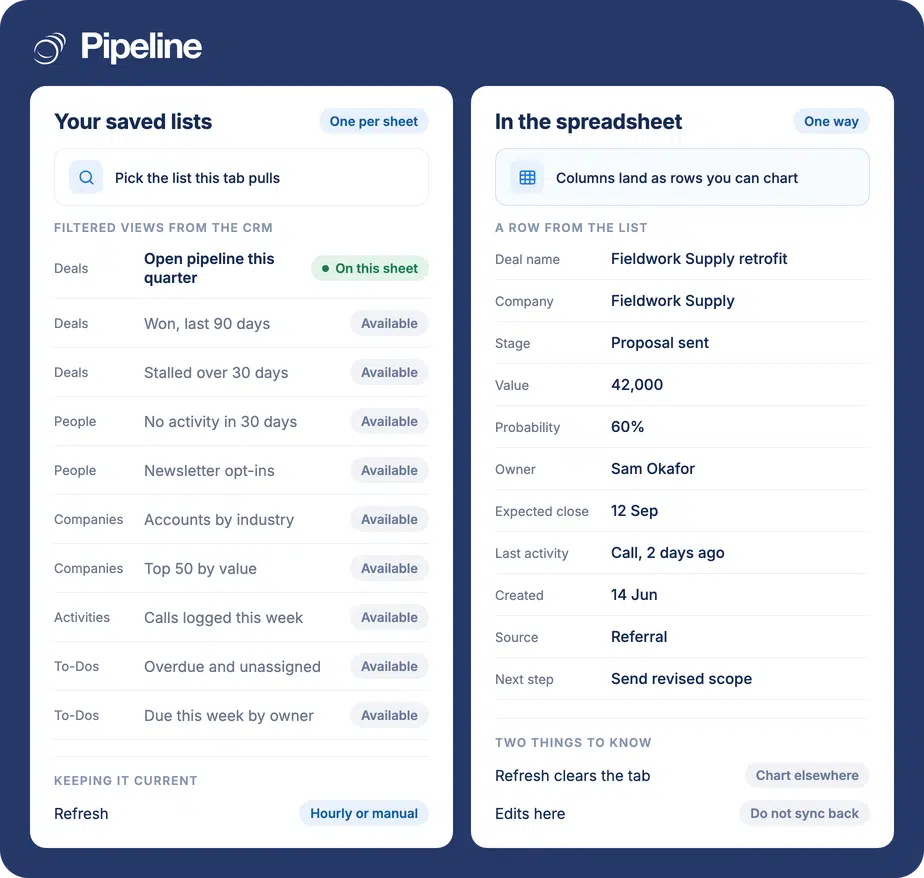
The Pipeline Data Sync add-in pulls your saved lists straight into Excel, so the numbers you report on come from the CRM rather than from a copy somebody pasted last Tuesday. It runs one way, and each worksheet holds one list.
✓ No credit card required ✓ 14-day free trial ✓ Cancel anytime
Trusted by over 18,000 users globally





At a Glance
Pipeline CRM integrates with Excel through the Pipeline Data Sync add-in, installed from the Microsoft Store or from inside Excel. It pulls a saved list from Pipeline CRM into a worksheet, one list per sheet, refreshing hourly or on demand. The sync is one way: data moves from Pipeline CRM into Excel, and edits made in Excel do not change the CRM.
The report is only as fresh as the export
Most sales reporting in Excel starts with a CSV somebody downloaded, and it starts going stale the moment they do.
Exports age badly
A pasted CSV is accurate for an afternoon. Every meeting after that is a conversation about numbers nobody quite trusts.
Rebuilding it is the whole job
Re-exporting means re-applying the formatting, the formulas and the pivot layout, so the report gets rebuilt rather than refreshed.
Two sources of truth
Once the spreadsheet is edited by hand it disagrees with the CRM, and the team has to decide which one to believe.
Install the add-in, pick a list
You need Excel 2016 or later or Microsoft 365, including Excel for the web, permission to install Office Add-ins, API access enabled on your Pipeline CRM account, and at least one saved list to pull.
Save the list you want first
In Pipeline CRM, filter People, Deals, Companies, Activities or To-Dos to the view you want and save it. The add-in imports saved lists, so there has to be one before anything can be pulled.
Install the add-in
From Pipeline CRM, open your profile icon, then My Profile, then Integrations, and click Download Plugin on the Excel Reports and Dashboard tile. You can also install from inside Excel under Home, Add-ins, Get Add-ins, searching for Pipeline Deals Data Sync.
Import the list and set the refresh
Open Excel, click the Pipeline logo on the Home tab, choose a saved list from the dropdown and click Refresh Data. Choose whether it refreshes hourly or only when you ask. Full setup guide in the help centre.
Teams whose reporting lives in Excel
This is a reporting tool. It suits people who want CRM data inside the spreadsheet they already build in, rather than people looking to run the business there.
Your board pack is a spreadsheet
The pipeline table is one tab, the charts are another, and the numbers arrive without anyone re-exporting them.
You model as well as report
Weighted forecasts, commission runs and scenario tabs are spreadsheet work, and they need live inputs rather than a monthly paste.
You are moving off spreadsheets
Keeping the reporting familiar while the records move into the CRM makes the change easier to sell to the team.
In the Excel integration
Everything below comes with the Pipeline Data Sync add-in.
Saved lists as worksheets
Any saved list of People, Deals, Companies, Activities or To-Dos can be pulled into a sheet.
A different list per worksheet
Each sheet holds one list, so a workbook can carry several views of the CRM side by side.
Hourly auto-refresh
Set the data to update itself every hour so the workbook is current when somebody opens it.
Manual refresh
Or leave it under your control and refresh only when you are ready to report.
Works in Excel for the web
Excel 2016 or later and Microsoft 365 are supported, including the browser version.
Your filters, not fixed reports
What arrives is whatever your saved list contains, so the filtering happens in the CRM where it belongs.
Install from either side
Get it from your Pipeline CRM profile or from the add-in store inside Excel.
Charting on your own terms
Once the rows are in the sheet, the pivot tables and charts are ordinary Excel work with no reporting builder to learn.
Refreshing clears the worksheet
Refreshing a sheet wipes everything already on it and writes the list again. Charts, formulas and pivot tables built on that tab go with it. So keep the data on its own tab and build everything else on another one that references it. Do that from the start and refresh is uneventful.
Excel integration questions
What people ask before connecting a spreadsheet.
Does Pipeline CRM integrate with Excel?
Yes, through the Pipeline Data Sync add-in. It pulls your saved lists from Pipeline CRM into Excel worksheets, and you can set each sheet to refresh hourly or only when you ask it to.
You need Excel 2016 or later or Microsoft 365, including Excel for the web, and API access enabled on your Pipeline CRM account.
Can I edit data in Excel and have it update the CRM?
No. The sync runs one way, from Pipeline CRM into Excel. Anything you type in the spreadsheet stays in the spreadsheet.
It is worth knowing before you plan a workflow around it: the add-in is for reporting on CRM data, not for editing records through a sheet.
What happens to my charts when the data refreshes?
Refreshing clears everything on that worksheet and writes the list again, so anything built on the same tab is lost.
Keep the imported list on its own tab and build charts, formulas and pivot tables on a separate one that references it. Set up that way, refreshing is safe.
How many lists can I pull into one workbook?
As many as you have sheets for. Each worksheet holds one saved list, so a workbook can show deals, people and activities side by side on separate tabs.
Create the saved lists in Pipeline CRM first, since the add-in imports what you have already saved rather than letting you build a filter in Excel.
Why can I not find the add-in in the store?
It is listed under the name Pipeline Deals Data Sync, which is our former brand. Search for that and it will come up.
You can also install it from inside Pipeline CRM under My Profile, then Integrations, using the Download Plugin button on the Excel Reports and Dashboard tile.
Can I just run my CRM in Excel instead?
Plenty of teams do, and it works right up until it does not. A spreadsheet has no history of who said what, no reminder that a deal has gone quiet, and no way to stop two people editing the same row differently.
The honest answer is that this add-in is not a way to keep working in Excel. It is for keeping your reporting there while the records themselves live somewhere built for them. If that is the move you are making, the built-in reporting may cover what you were doing in the spreadsheet anyway.