

RingCentral CRM integration for Pipeline CRM
Connect RingCentral and Pipeline CRM logs your calls and voicemails as activities on the right person or company, so nobody updates records after a call. One thing to sort out before you start: at least one Pipeline CRM admin also has to be an admin in RingCentral.
✓ No credit card required ✓ 14-day free trial ✓ Cancel anytime
Trusted by over 18,000 users globally





At a Glance
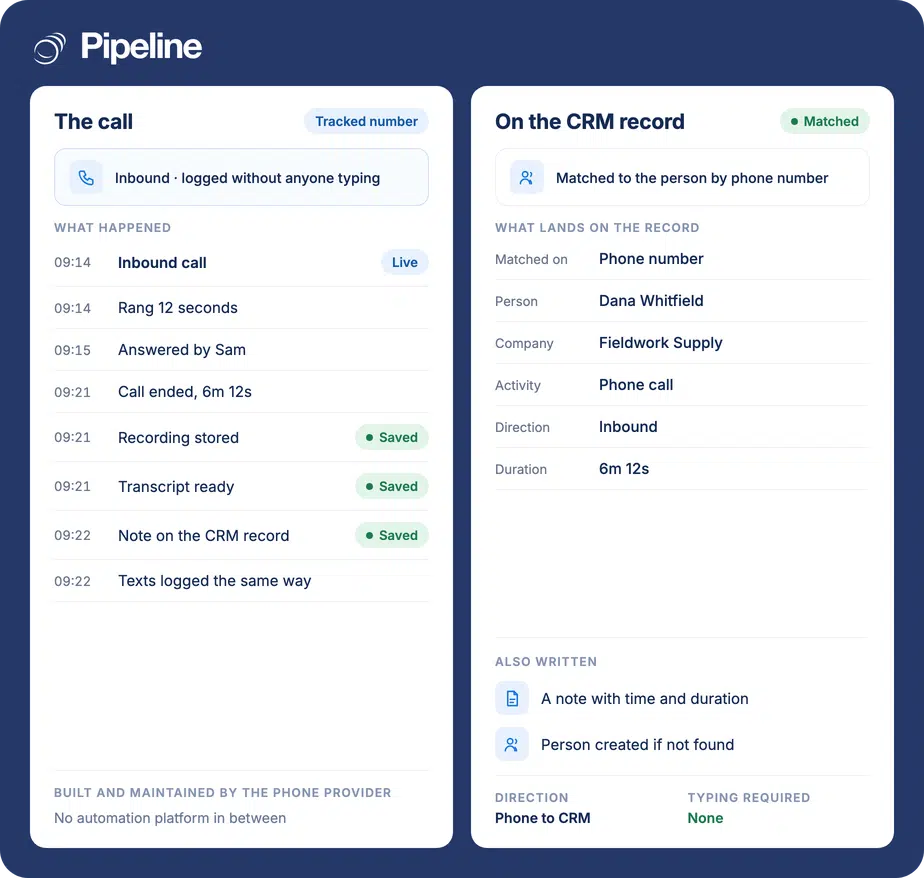
Pipeline CRM integrates with RingCentral through a built-in integration installed from the App Store and authorised with your RingCentral account. Completed calls, missed calls and voicemails are logged as activities on the matching People or Company records, with call events mapped to activity categories you choose. It requires an admin who holds admin rights in both systems.
Updating records after every call
A phone system and a CRM that do not talk leave one job nobody wants: retyping what just happened, call after call.
The admin work outlasts the call
Logging a two-minute call takes a fair share of two minutes. Across a team and a day that is real time, and it is the first thing dropped.
Missed calls leave no trace
An unanswered inbound call is a lead raising their hand. Without logging there is nothing on the record to prompt anyone to ring back.
Activity cannot be measured
If calls are not in the CRM you cannot compare effort against pipeline, so coaching relies on what people say they did.
Sort the admin rights first
This integration has an organisational prerequisite as well as a technical one, and it is the thing most likely to stall the setup.
Confirm you have an admin in both systems
At least one Pipeline CRM admin must also be an admin in RingCentral for the integration to work properly. Where telephony and the CRM are owned by different people, arrange this before anyone starts clicking.
Every user sets their work number
Each Pipeline CRM user goes to Profile, then My Profile, then Work Number, and enters the same number they use in RingCentral, then saves.
Install, authorise, then map the events
An admin opens Settings, then Other, then App Store, installs RingCentral, and clicks Connect on the RingCentral Service tab. Work through RingCentral’s Continue and Authorize prompts, come back and run Test Connection, then enter the RingCentral number on the Settings tab, map the call events to activity categories and enable it. Full setup guide in the help centre.
Teams already standardised on RingCentral
The call logging is much the same across our phone integrations, so the deciding factor is usually which phone system you already run.
RingCentral is your phone system
If the business already runs on it, this is the shortest route to calls appearing on records without changing how anyone makes them.
Several people share the phones
Each agent can use their own number for dialling, so activity attributes to the person who actually made the call.
You care about missed calls
Unanswered inbound calls are logged too, which turns a silent drop into something visible on the record.
In the RingCentral integration
Everything below is part of the integration, installed from the App Store.
Completed calls logged
Incoming and outgoing calls that connect are written as activities on the matching record.
Missed calls logged
Unanswered calls in both directions are recorded too, so a dropped inbound call is visible.
Incoming voicemails logged
Voicemails left for you appear as activities on the record rather than only in the phone system.
Attaches to People or Companies
Activities land on the matching person or company record, so the history sits where the rest of the relationship lives.
Call events you map yourself
Each event type is pointed at an activity category, existing or new, so the logging matches how you already organise activity.
Per-agent numbers for dialling
Each user’s own RingCentral number can be used, so activity attributes to the person who made the call.
OAuth setup, no keys to copy
Connect and authorise in RingCentral rather than pasting credentials, so there is nothing to mislay.
Test Connection before going live
Verify the link works from inside the integration before you enable it for the team.
An admin in both systems, and one number for SMS
The admin requirement is the one that stalls setups. At least one Pipeline CRM admin must also hold admin rights in RingCentral. In smaller teams that is the same person and nobody notices; in larger ones telephony and the CRM often sit with different departments, and the integration cannot be completed until somebody holds both. Worth resolving before you book time to do the setup. The second is narrower but easy to trip over: multiple numbers are not supported for RingCentral SMS. Multi-number support applies to the dialler only. So a team can dial from several RingCentral numbers, but texting does not work that way. If multi-number texting is a requirement, this is the wrong pairing for it and worth checking the alternatives instead.
RingCentral integration questions
What people ask before connecting RingCentral.
Does Pipeline CRM integrate with RingCentral?
Yes, and it is built in. You install it from the Pipeline CRM App Store under Settings, then Other, and authorise Pipeline CRM inside RingCentral. There are no API keys to copy.
Once enabled, completed calls, missed calls and incoming voicemails log as activities on the matching People or Company records.
Do I need to be an admin in RingCentral too?
At least one Pipeline CRM admin must also be an admin in RingCentral for the integration to work properly. It is not enough to be an admin on our side only.
This is the requirement that most often delays setup, because in larger organisations the phone system and the CRM belong to different teams. Sort out who holds both roles before scheduling the work.
Can we text from several RingCentral numbers?
No. Multiple numbers are not supported for RingCentral SMS, and multi-number support applies to the dialler only.
Your team can dial from their own numbers, but texting does not work per-number. If multi-number texting is a requirement, look at the other phone integrations rather than planning around this one.
Why are calls not logging for one user?
Their work number probably does not match. Each user must enter the same number they use in RingCentral under Profile, then My Profile, then Work Number.
A mismatch means calls attach to the wrong user or do not appear, with no error. If logging works for the team and fails for one person, that field is the first check.
What exactly gets logged?
Completed calls in both directions, missed calls in both directions, and incoming voicemails, each written as an activity on the matching person or company.
You choose which activity category each event maps to during setup, so you can keep everything under one Phone Call category or split it out for reporting.
Do activities land on the person or the company?
Either, depending on which record matches. The integration writes activities to People or Company records, so a call from a known contact lands on them and a call from a company’s main number can land on the company.
This is why keeping phone numbers tidy on your records is worth the effort: matching is what decides where the history goes.