

JustCall CRM integration for Pipeline CRM
Connect JustCall and every call, text, recording and voicemail lands on the right contact in Pipeline CRM as an activity, with click to call and click to text from the record. You install it from the Pipeline CRM App Store with your JustCall API credentials, and the one thing to get right first is that each user’s phone number matches in both systems.
✓ No credit card required ✓ 14-day free trial ✓ Cancel anytime
Trusted by over 18,000 users globally





At a Glance
Pipeline CRM integrates with JustCall through a built-in integration installed from the App Store using your JustCall API key and secret. Calls, texts, recordings and voicemails are logged automatically as activities on the matching contact, and you can click to call or text from the record. Each call type maps to an activity category you choose.
Calls are the least recorded thing in the pipeline
Everything else leaves a trail on its own. Calls only get recorded if a person stops and writes them down, which is why they usually are not.
Nobody logs their own calls
Call notes are the first thing dropped on a busy day, so the record shows a gap exactly where the most informative conversation happened.
Dialling by copy and paste
Reading a number off one screen and typing it into another costs seconds per call and mis-dials on some of them, which adds up across a day of outbound.
Texts happen off the record
Deals are increasingly moved along by SMS, and if those threads live in a phone app nobody else can see them or pick them up.
Match the phone numbers first
You need admin permissions in both Pipeline CRM and JustCall. The number-matching step comes first because it is the one that fails quietly.
Every user sets their work number
Each Pipeline CRM user goes to Profile, then My Profile, then Work Number, and enters the same number they use in JustCall. It must match exactly, or calls log against the wrong user or do not log at all, with nothing to tell you why.
Get your JustCall API credentials
In JustCall, open your profile icon, then API and Webhooks, and copy the API Key and API Secret. This needs admin permissions in JustCall.
Install it and map your call types
In Pipeline CRM go to Settings, then Other, then App Store, install JustCall and open JustCall Service. Paste the API Key into Username and the API Secret into Password, run Test Connection, then map each of the six call types to an activity category and enable the integration. Full setup guide in the help centre.
Teams who live on the phone
The more of your selling happens by voice and text, the more this is worth having on rather than off.
You run outbound calling
Click to call from the record removes the copy and paste, and every attempt is logged whether or not it connected.
You text your prospects
SMS threads become activities on the contact instead of living in one person’s phone, so cover works and handovers are possible.
You want call reporting
Because each call type maps to a category you choose, you can build a reporting view of outbound versus inbound, answered versus missed.
In the JustCall integration
Everything below is part of the integration, installed from the App Store.
Automatic call logging
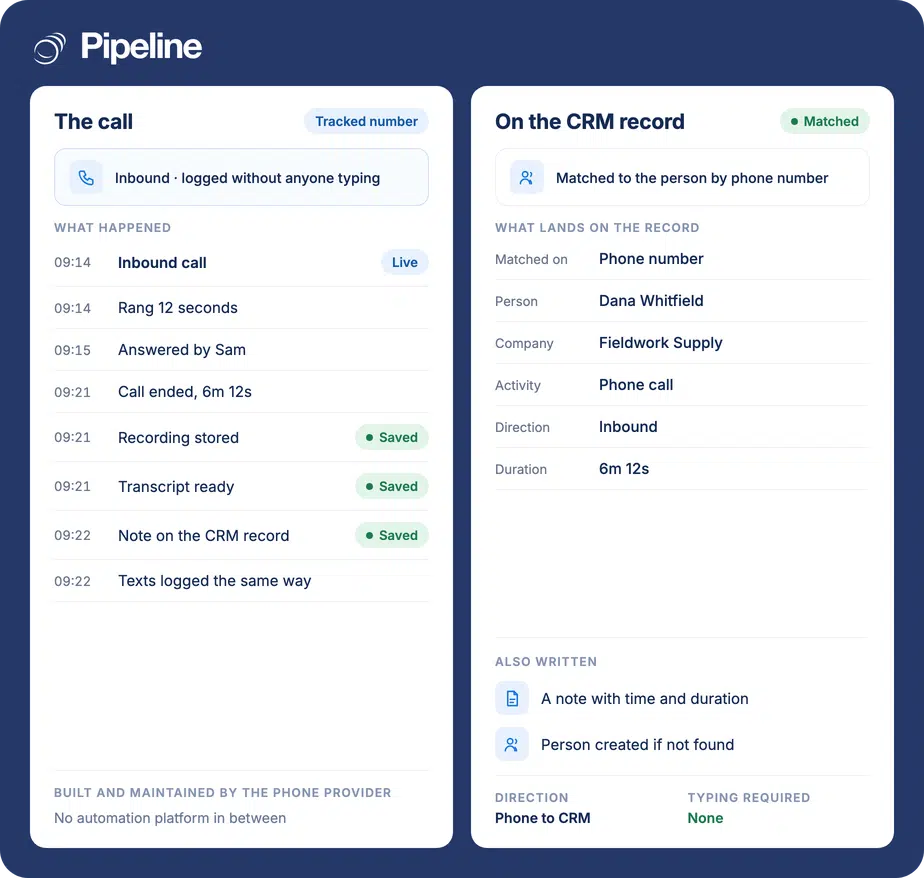
Calls are written to the matching contact as activities without anyone typing a note.
Click to call
Dial straight from a Pipeline CRM contact rather than copying the number into a phone app.
Click to text
Send an SMS from the record, so the message is part of the history rather than a private thread.
Call recordings attached
Where JustCall records the call, the recording is reachable from the activity on the contact.
Voicemails logged
Both voicemails you receive and voicemails you leave are logged, mapped to the categories you choose.
Missed calls logged
Unanswered calls in both directions create activities, so a missed inbound call is visible rather than invisible.
Six call types you map yourself
Completed and missed calls in each direction plus voice messages in each direction, each pointed at an activity category you pick.
Inbound and outbound texts
SMS in both directions creates activities on the contact, subject to the 10DLC requirement below.
Matching numbers, and 10DLC for texting
The phone number in each user’s Pipeline CRM profile has to be the same number they use in JustCall, character for character. When it does not match, calls either log against the wrong user or do not appear, and nothing warns you. If activity is missing for one person and fine for everyone else, this is almost always why. For SMS there is a second requirement that is not ours: texting needs a valid 10DLC campaign registered with JustCall. That is US carrier regulation covering business messaging over standard numbers, and registration takes time. If SMS is part of why you want this, start that process early rather than discovering it on the day you planned to go live.
JustCall integration questions
What people ask before connecting a dialler.
Does Pipeline CRM integrate with JustCall?
Yes, and it is a built-in integration rather than a third-party connector. You install it from the Pipeline CRM App Store under Settings, then Other, and authenticate it with your JustCall API key and secret.
Once enabled, calls, texts, recordings and voicemails log automatically as activities on the matching contact, and you can call or text from the record.
Why are calls not logging for one user?
Their phone number almost certainly does not match. Each Pipeline CRM user must enter the same number they use in JustCall under Profile, then My Profile, then Work Number.
When it does not match, the call either attaches to the wrong user or does not appear at all, and there is no error message. If logging works for the team and fails for one person, check that field first.
Where do I find my JustCall API key and secret?
In JustCall, click your profile icon in the top right, then API and Webhooks. Both the API Key and the API Secret are there. You need admin permissions in JustCall to see them.
One thing that catches people out: in the Pipeline CRM setup screen the API Key goes in the field labelled Username and the API Secret in the field labelled Password.
Do I need anything extra to send texts?
Yes. SMS requires a valid 10DLC campaign registered with JustCall. That is a US carrier requirement for business messaging on standard numbers, not something we impose, and approval is not instant.
Calls work without it. If texting matters to you, begin the 10DLC registration with JustCall before you plan your go-live.
Can I report on call activity?
Yes, and the mapping step is what makes it useful. Each of the six call types can point at its own activity category, so you can build a reporting view that separates outbound from inbound and answered from missed.
If you would rather keep it simple, map all six to a single Phone Call category instead.
What are the other phone options?
Aircall, Dialpad, Kixie and RingCentral all connect to Pipeline CRM the same way, from the App Store, and log the same six call types. Which one fits is usually decided by the phone system you already run.
CallRail is the exception in the group. It is built by CallRail rather than by us, and it does a different job: tracking inbound calls to advertised numbers. For a wider view of calling options, start with the call tracking and telephony overview.
If you do not already run a phone system, Pipeline Phone puts calling inside Pipeline CRM and logs every call with its recording and transcript. If your team already uses JustCall, this integration is the way to connect it.